So far, we have exclusively focused on the use of vector and tabular data. However, depending on the nature of your research problem, you may also encounter raster data. This week’s content introduces you to raster data, map algebra, and interpolation.
6.1 Lecture slides
You can download the slides of this week’s lecture here: [Link].
6.2 Reading list
Essential readings
Gimond, M. 2025. Intro to GIS and spatial analysis. Chapter 16: Spatial Interpolation. [Link]
Heris, M., Foks, N., Bagstad, K. et al. 2020. A rasterized building footprint dataset for the United States. Scientific Data 7: 207. [Link]
Láng-Ritter, J., Keskinen, M., Tenkanen, H. 2025. Global gridded population datasets systematically underrepresent rural population. Nature Communications 16: 2170. [Link]
Suggested readings
Mellander, C., Lobo, J., Stolarick, K. et al. 2015. Night-time light data: A good proxy measure for economic activity? PLoS ONE 10(10): e0139779. [Link]
Park, G. and Franklin, R. 2023. The changing demography of hurricane at-risk areas in the United States (1970–2018). Population, Space and Place 29(6): e2685. [Link]
Thomson, D., Leasure, D., Bird, T. et al. 2022. How accurate are WorldPop-Global-Unconstrained gridded population data at the cell-level? A simulation analysis in urban Namibia. PLoS ONE 17(7): e0271504. [Link]
6.3 Start of session
Before working through the tutorial, we will spend a few minutes looking at:
What raster data actually looks like
How WorldPop’s population estimates compare to the census
6.4 Population change in London
For the first part of this week’s practical material we will be using raster datasets from WorldPop. These population surfaces are estimates of counts of people, displayed within a regular grid raster of a spatial resolution of up to 100m. These datasets can be used to explore, for example, changes in the demographic profiles or area deprivation at small spatial scales.
The key difference between vector and raster models lies in their structure. Vectors are made up of points, lines, and polygons. In contrast, raster data consists of pixels (or grid cells), similar to an image. Each cell holds a single value representing a geographic phenomenon, such as population density at that location. Common raster data types include remote sensing imagery, such as satellite or LIDAR data.
Go to Population Count -> Unconstrained individual countries 2000-2020 (1km resolution).
Type United Kingdom in the search bar.
Download the GeoTIFF files for 2010 and 2020: gbr_ppp_2010_1km_Aggregated and gbr_ppp_2020_1km_Aggregated.
Save the files to your computer in your data folder.
A GeoTIFF is a type of raster file format that embeds geographic information, enabling the image to be georeferenced to specific real-world coordinates. It includes metadata like projection, coordinate system, and geographic extent, making it compatible with GIS software for spatial analysis.
To focus the analysis on London, we need to clip our dataset to the boundaries of the city. For this, we will use the London Borough boundaries, which can be downloaded from the link below. Be sure to save the files in the data folder within your data directory.
You may have to install some of these libraries if you have not used these before.
6.4.1 Map algebra
We will be using some simple map algebra to look at population change in London between 2010 and 2020. We can load the individual GeoTIFF files that we downloaded into R and reproject them into British National Grid using the terra library.
The cells in these rasters hold counts of people. By default, project() interpolates values bilinearly, which smooths the counts and does not preserve the total: for London, this would lose around 8% of the population. Setting method = 'sum' sums the contributions of the overlapping cells instead, so that the totals are preserved. Whenever you reproject or resample a raster of counts, check that the total before and after is the same. We also set the cell size of the output to 1,000 metres with res = 1000: if you leave it out, terra chooses a cell size itself (here about 763 metres).
Carefully examine each raster to understand its structure and the information it contains. The output lists, among other things, the number of rows and columns, the resolution (cell size), the extent, the coordinate reference system, and the range of the values:
R code
# inspect 2010 datapop2010
class       : SpatRaster
size        : 1244, 748, 1  (nrow, ncol, nlyr)
resolution  : 1000, 1000  (x, y)
extent      : -77814.63, 670185.4, -4989.685, 1239010  (xmin, xmax, ymin, ymax)
coord. ref. : OSGB36 / British National Grid (EPSG:27700)
source(s)   : memory
name        : gbr_ppp_2010_1km_Aggregated
min value   :                           0
max value   :                20994.882812
# inspect 2020 datapop2020
class       : SpatRaster
size        : 1244, 748, 1  (nrow, ncol, nlyr)
resolution  : 1000, 1000  (x, y)
extent      : -77814.63, 670185.4, -4989.685, 1239010  (xmin, xmax, ymin, ymax)
coord. ref. : OSGB36 / British National Grid (EPSG:27700)
source(s)   : memory
name        : gbr_ppp_2020_1km_Aggregated
min value   :                           0
max value   :                24799.443359
A raster file is always rectangular, with areas lacking data stored as NA. For our population data, this means any pixels outside the land borders of Great Britain will have by definition an NA value.
We can also plot the raster files for visual inspection:
R code
# plot 2010plot(pop2010)
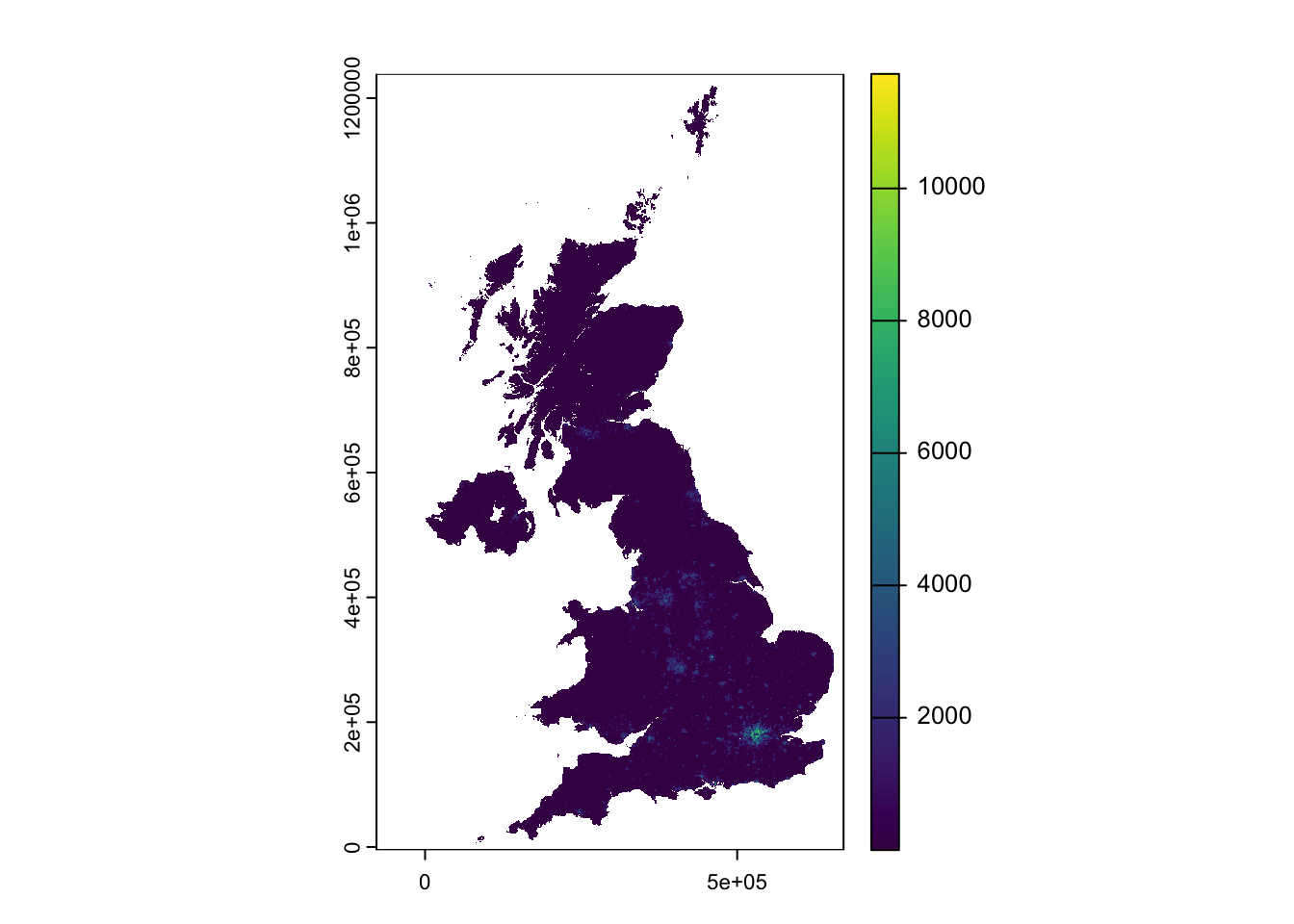
Figure 1: WorldPop 2010 population estimates for the United Kingdom.
R code
# plot 2020plot(pop2020)
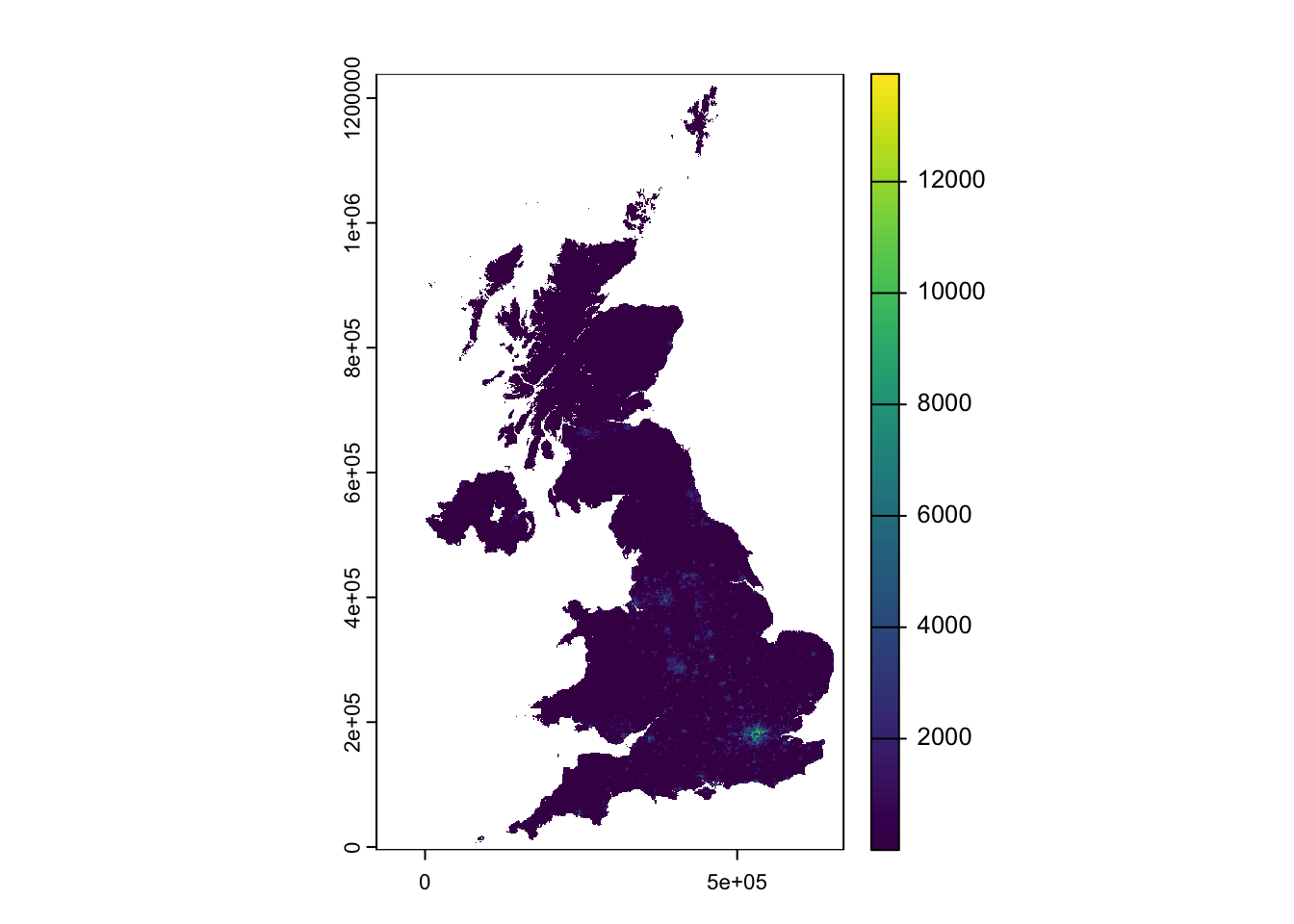
Figure 2: WorldPop 2020 population estimates for the United Kingdom.
You will notice that while the maps appear similar, the legend indicates a significant increase in values over the decade from 2010 to 2020, with the maximum rising from approximately 21,000 people per cell to almost 25,000.
Now that we have our raster data loaded, we will focus on reducing it to display only the extent of London. We will use the London borough GeoPackage.
The terra package does not accept sf objects, so after loading the London borough boundaries, we need to convert the file into a SpatRaster or SpatVector.
R code
# load data, to spatvectorborough <-st_read("data/spatial/London-Boroughs.gpkg") |>vect()
Reading layer `london_boroughs' from data source
  `/Users/justinvandijk/Library/CloudStorage/Dropbox/UCL/Web/jtvandijk.github.io/GEOG0030/data/spatial/London-Boroughs.gpkg'
  using driver `GPKG'
Simple feature collection with 33 features and 7 fields
Geometry type: POLYGON
Dimension:     XY
Bounding box:  xmin: 503568.2 ymin: 155850.8 xmax: 561957.5 ymax: 200933.9
Projected CRS: OSGB36 / British National Grid
# crop to extentpop2010_london <-crop(pop2010, borough)pop2020_london <-crop(pop2020, borough)# mask to boundariespop2010_london <-mask(pop2010_london, borough)pop2020_london <-mask(pop2020_london, borough)
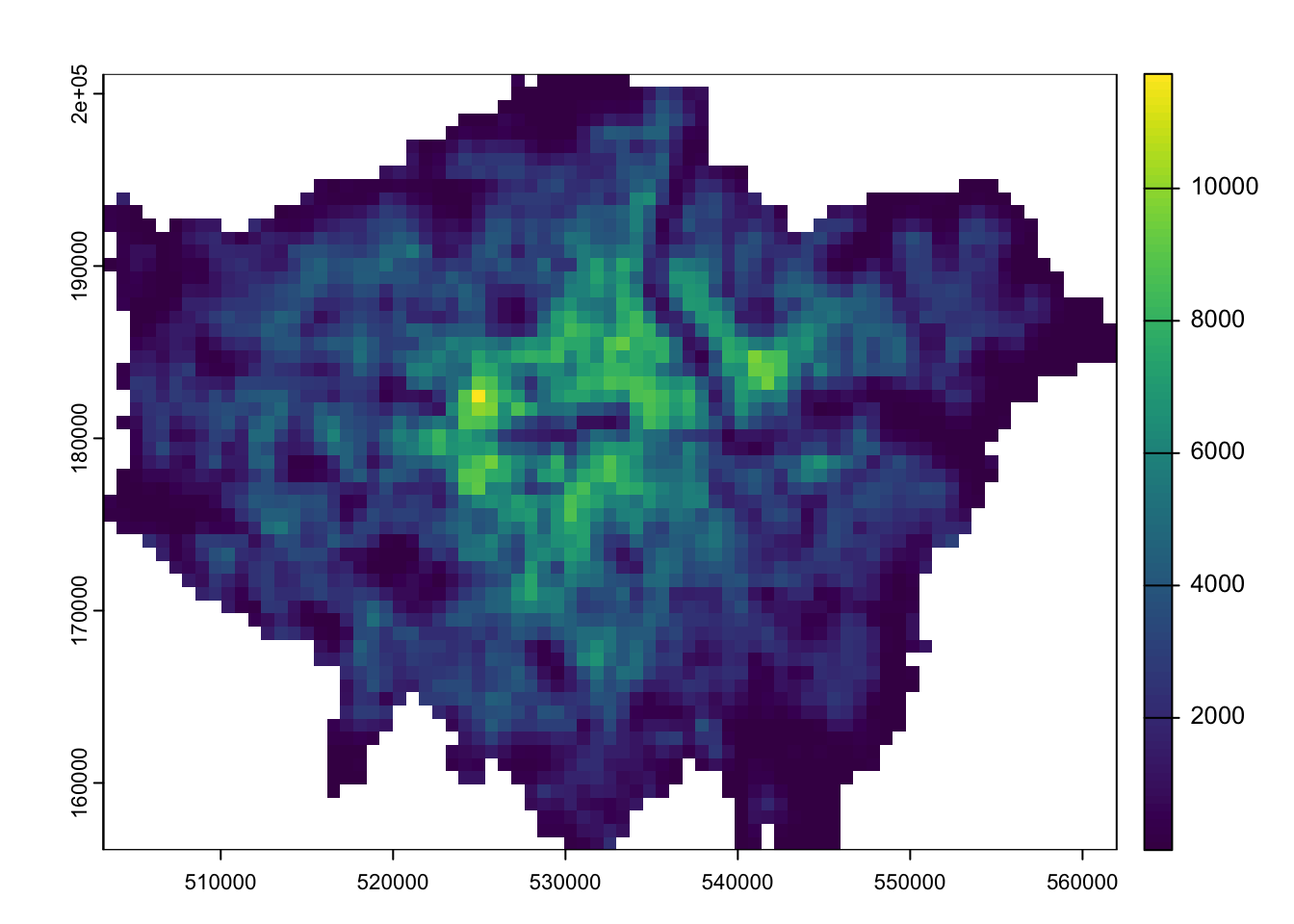
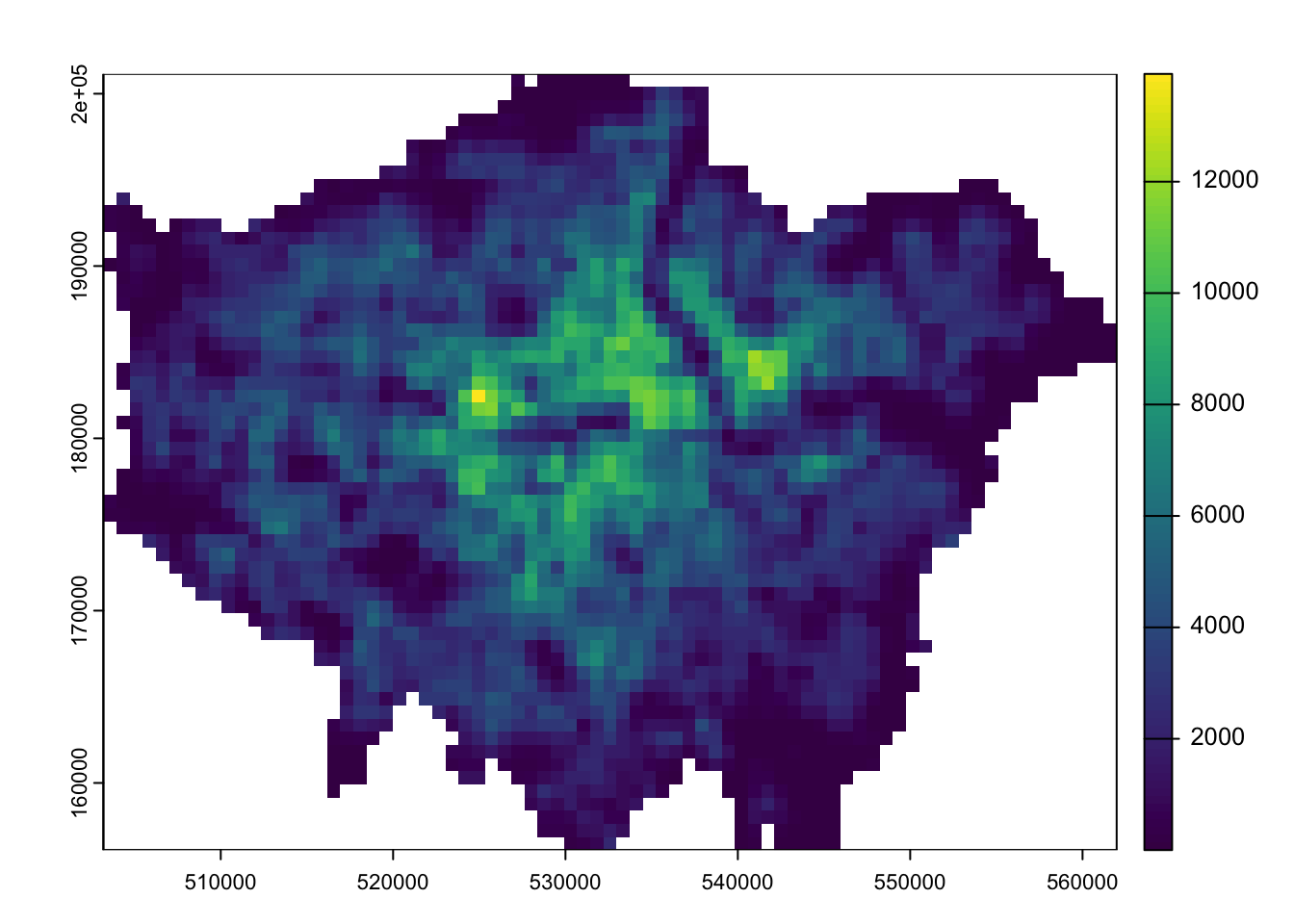
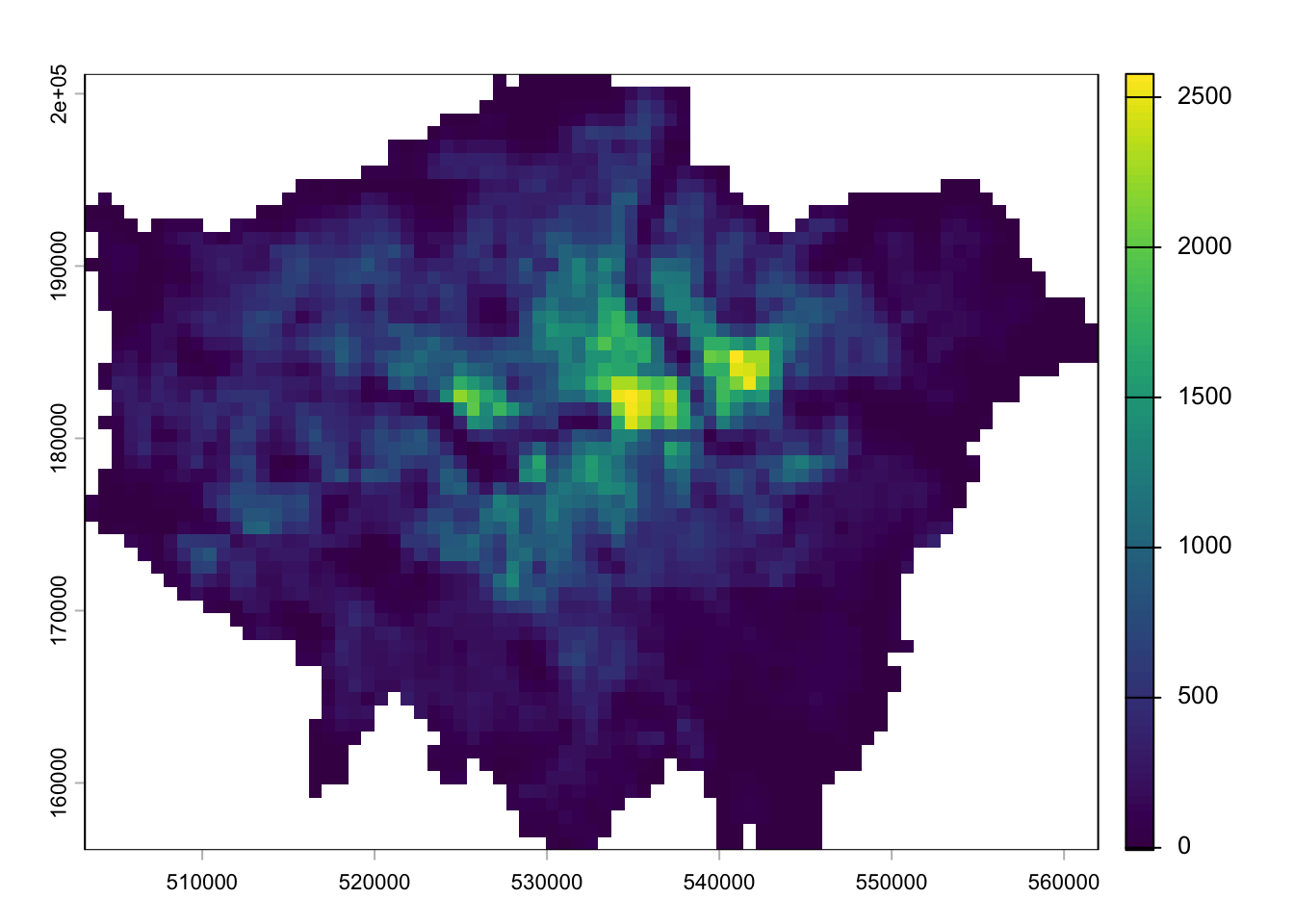
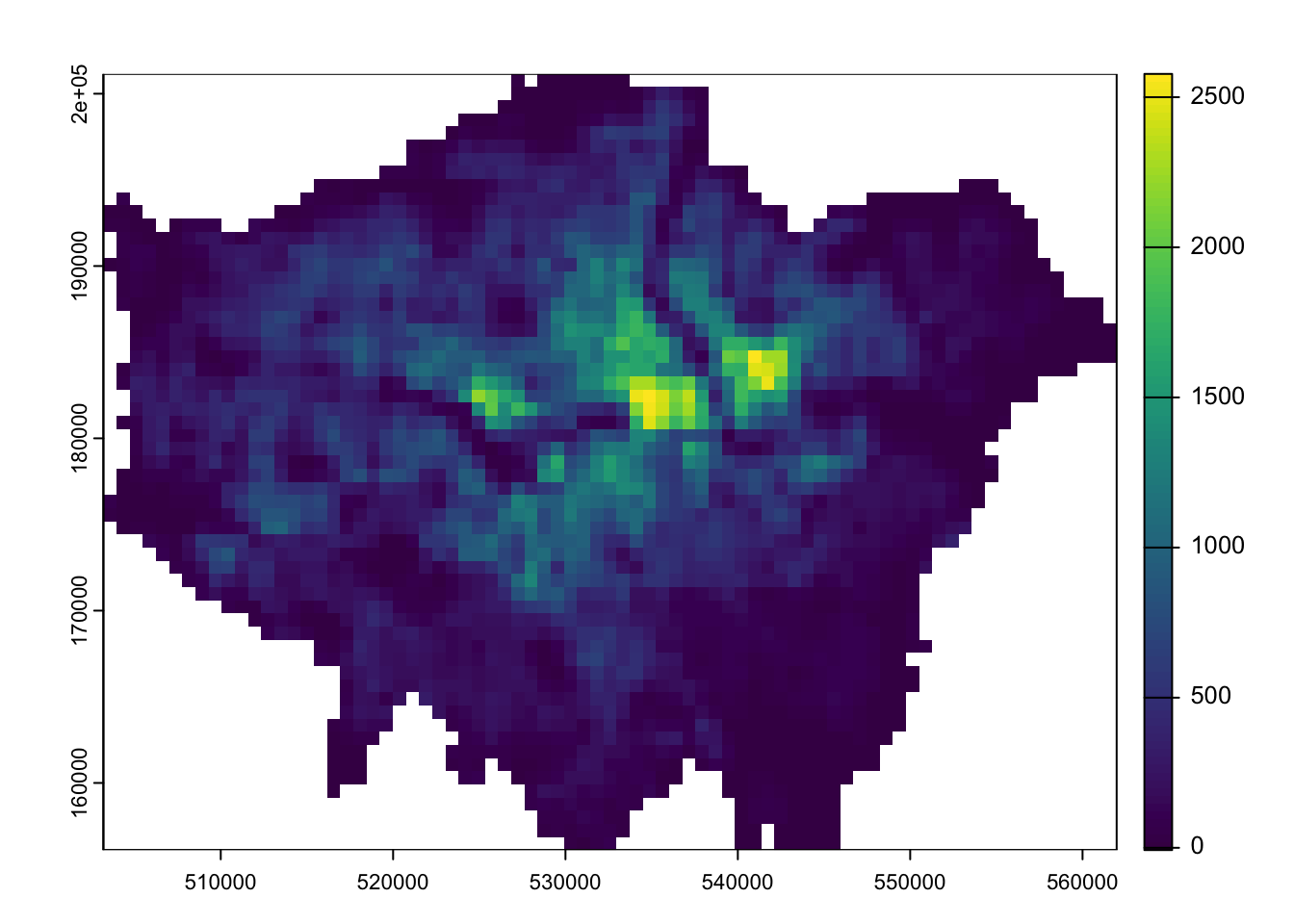
We should now have the raster cells that fall within the boundaries of London:
R code
# inspectplot(pop2010_london)
Figure 3: WorldPop 2010 population estimates for London.
R code
# inspectplot(pop2020_london)
Figure 4: WorldPop 2020 population estimates for London.
NotePredict first
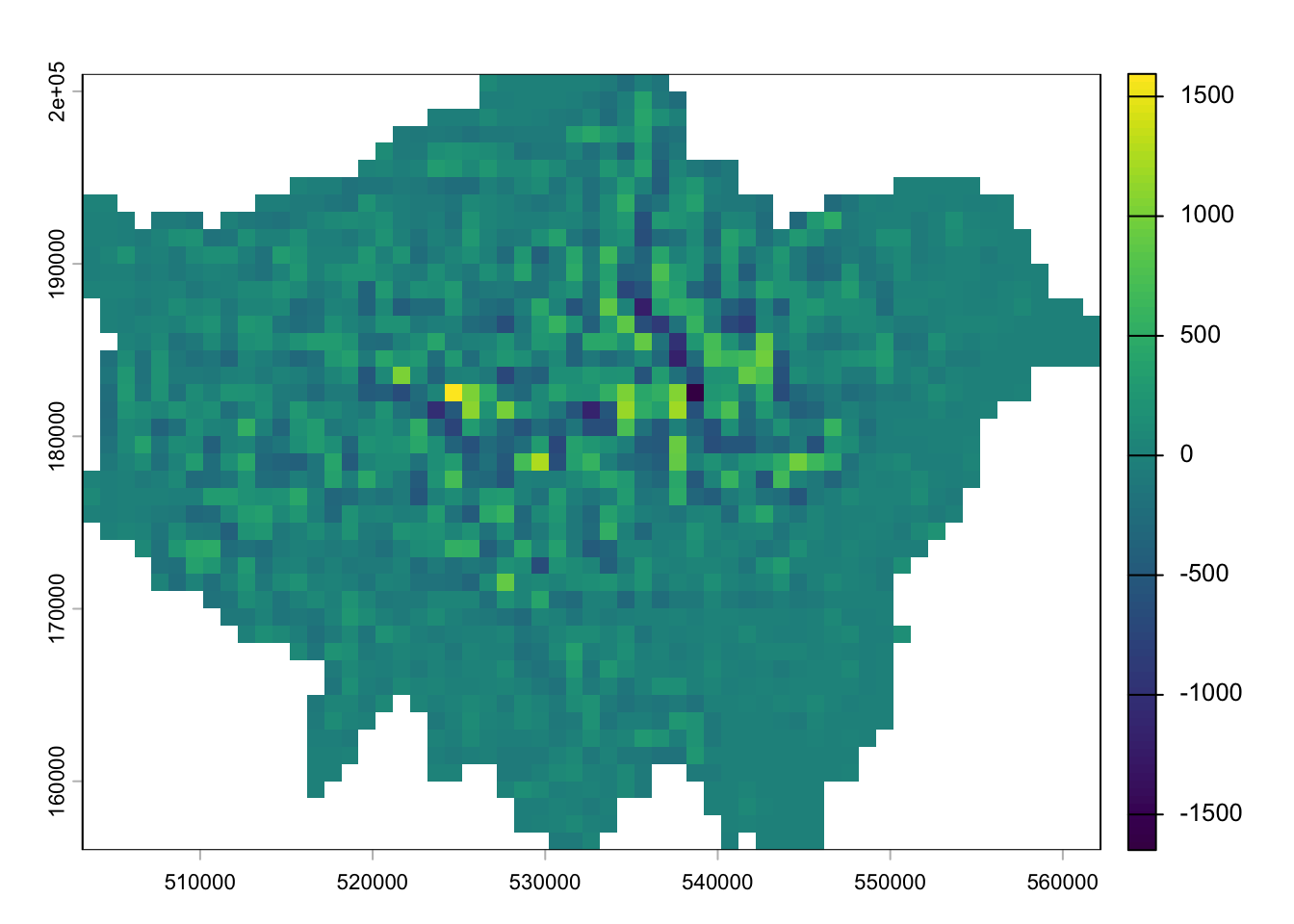
Before you run the next chunk, predict whether population grew in nearly all cells or only in some, and whether the largest gains are in central or outer London. Compare your prediction with the map.
Now we have our two London population rasters, we can calculate population change between the two time periods by subtracting our 2010 population raster from our 2020 population raster:
To further analyse our population change raster, we can create a smoothed version of the lonpop_change raster using the focal() function. This function generates a raster in which each cell holds the mean value of that cell and its eight neighbours.
R code
# smoothlonpop_smooth <-focal(lonpop_change, w =matrix(1, 3, 3), fun = mean, na.rm =TRUE,na.policy ="omit")# inspectplot(lonpop_smooth)
Figure 6: Smoothed version of population change in London 2010-2020.
By default, focal() returns NA for every cell that has a missing neighbour, which would silently remove a strip along the edge of London. With na.rm = TRUE the mean is calculated from the neighbours that are available, and na.policy = 'omit' keeps the output to the cells that have a value in the input.
The differences may not be immediately apparent, but if you subtract the smoothed raster from the original raster, you will clearly see that changes have occurred.
Figure 7: Difference smoothed population change with original population change raster.
NoteTry it yourself
Change the window in focal() from matrix(1,3,3) to matrix(1,5,5), and predict how the smoothed raster changes. Run the code and compare the result with your prediction.
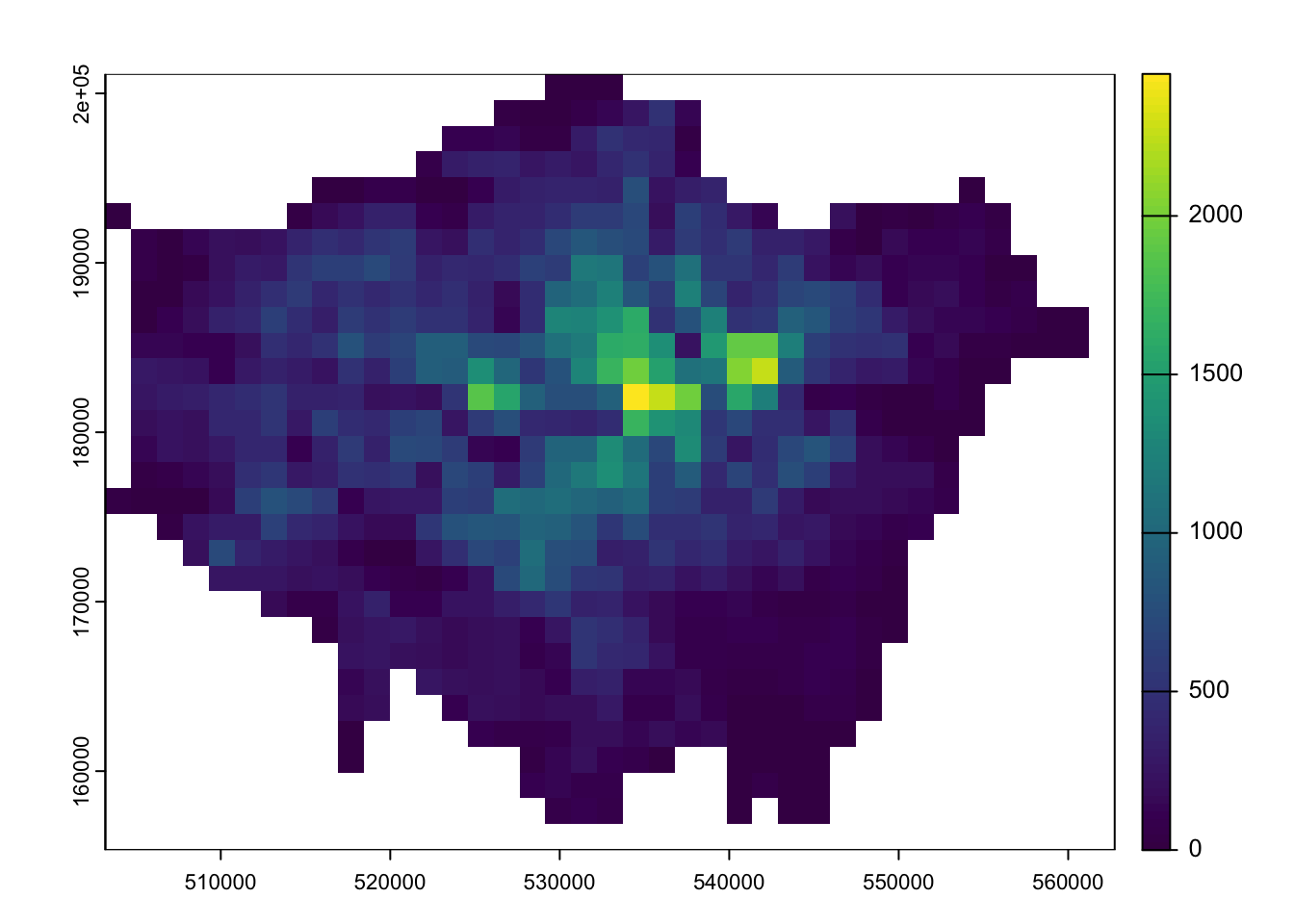
We can also use zonal functions to better represent population change by aggregating the data to coarser resolutions. For example, resizing the raster’s spatial resolution to contain larger grid cells simplifies the data, making broader trends more visible. However, it may also end up obfuscating more local patterns.
We can resize a raster using the aggregate() function, setting the factor parameter to the scale of resampling desired (e.g. doubling both the width and height of a cell). The fun parameter determines how to aggregate the data: as our cells hold counts of people, we use the sum, so that the total is preserved.
Figure 8: Population change in London 2010-2020, aggregated to cells of 2 by 2 kilometres.
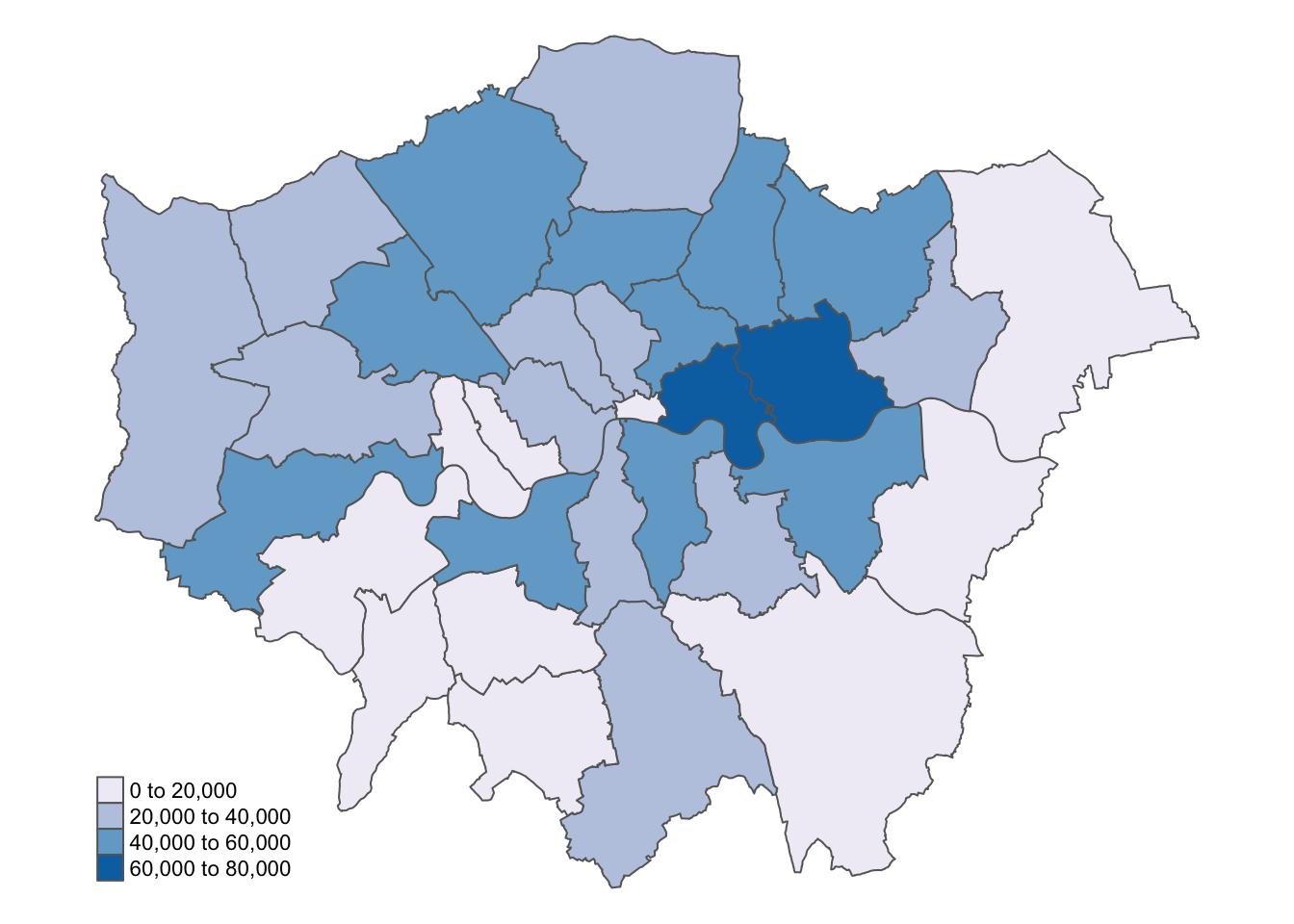
We can also aggregate raster cells to vector geographies. For example, we can aggregate the WorldPop gridded population estimates to the London borough boundaries. Because boroughs differ in size and in population, we map the percentage change rather than the absolute change:
Figure 9: Percentage population change in London boroughs 2010-2020.
You can further inspect the results using the View() function.
We now have a vector dataset, which allows us to perform many of the analyses we have explored in previous weeks.
Calculating population change, particularly over decades as we have done, can be challenging due to changes in administrative boundaries. Using raster data offers a helpful workaround, provided the rasters are of consistent size and extent.
6.5 Air pollution in London
In the second part of this week’s practical, we will explore various methods of spatial data interpolation, focusing on air pollution in London using data from Londonair. We will specifically look at Nitrogen Dioxide (NO2) measurements.
Londonair is the website of the London Air Quality Network (LAQN), which provides air pollution data for London and south-east England through the Environmental Research Group at Imperial College. This data is publicly available and can be accessed directly using the openair R package, without needing to download files.
Spatial interpolation predicts a phenomenon at unmeasured locations. It is often used when we want to estimate a variable across space, particularly in areas with sparse or no data.
R code
# get list of all measurement sitessite_meta <-importMeta(source ="kcl", all =TRUE, year =2023:2023)# download all data pertaining to these sitespollution <-importKCL(site =c(site_meta$code), year =2023:2023, pollutant ="no2",meta =TRUE)
Not all measurement sites collect data on NO2 so it is normal to get some 404 Not Found warnings.
This code may take some time to run, as it will attempt to download data from all air measurement sites for an entire year, with many measurements taken hourly. If you experience too many errors or if it is taking too long, you can download a copy of the data here: [Download]. Once downloaded, place the zip file in your data folder. The file is large, so you can leave it unzipped.
Let us start by loading and inspecting the data:
R code
# load from zip if downloaded through the linkpollution <-read_csv("data/attributes/London-NO2-2023.zip")
Multiple files in zip: reading 'London-Pollution-2023.csv'
Rows: 1615976 Columns: 8
── Column specification ────────────────────────────────────────────────────────
Delimiter: ","
chr  (4): site, code, source, site_type
dbl  (3): no2, latitude, longitude
dttm (1): date

ℹ Use `spec()` to retrieve the full column specification for this data.
ℹ Specify the column types or set `show_col_types = FALSE` to quiet this message.
# inspecthead(pollution)
# A tibble: 6 × 8
  date                  no2 site       code  source latitude longitude site_type
  <dttm>              <dbl> <chr>      <chr> <chr>     <dbl>     <dbl> <chr>
1 2023-01-01 00:00:00    NA City of L… CTA   kcl        51.5   -0.0921 Roadside
2 2023-01-01 01:00:00    NA City of L… CTA   kcl        51.5   -0.0921 Roadside
3 2023-01-01 02:00:00    NA City of L… CTA   kcl        51.5   -0.0921 Roadside
4 2023-01-01 03:00:00    NA City of L… CTA   kcl        51.5   -0.0921 Roadside
5 2023-01-01 04:00:00    NA City of L… CTA   kcl        51.5   -0.0921 Roadside
6 2023-01-01 05:00:00    NA City of L… CTA   kcl        51.5   -0.0921 Roadside
In the first six rows, we can see data from the same site, with the date field showing an observation for every hour. Given there are 24 hours in a day, 365 days in a year, and data from hundreds of sites, it is no surprise that the dataset is so large. To make the dataset more manageable, let us summarise the values by site.
R code
# mean site valuespollution_avg <- pollution |>filter(!is.na(latitude) &!is.na(longitude) &!is.na(no2)) |>group_by(code, latitude, longitude) |>summarise(no2 =mean(no2))
`summarise()` has regrouped the output.
ℹ Summaries were computed grouped by code, latitude, and longitude.
ℹ Output is grouped by code and latitude.
ℹ Use `summarise(.groups = "drop_last")` to silence this message.
ℹ Use `summarise(.by = c(code, latitude, longitude))` for per-operation
  grouping (`?dplyr::dplyr_by`) instead.
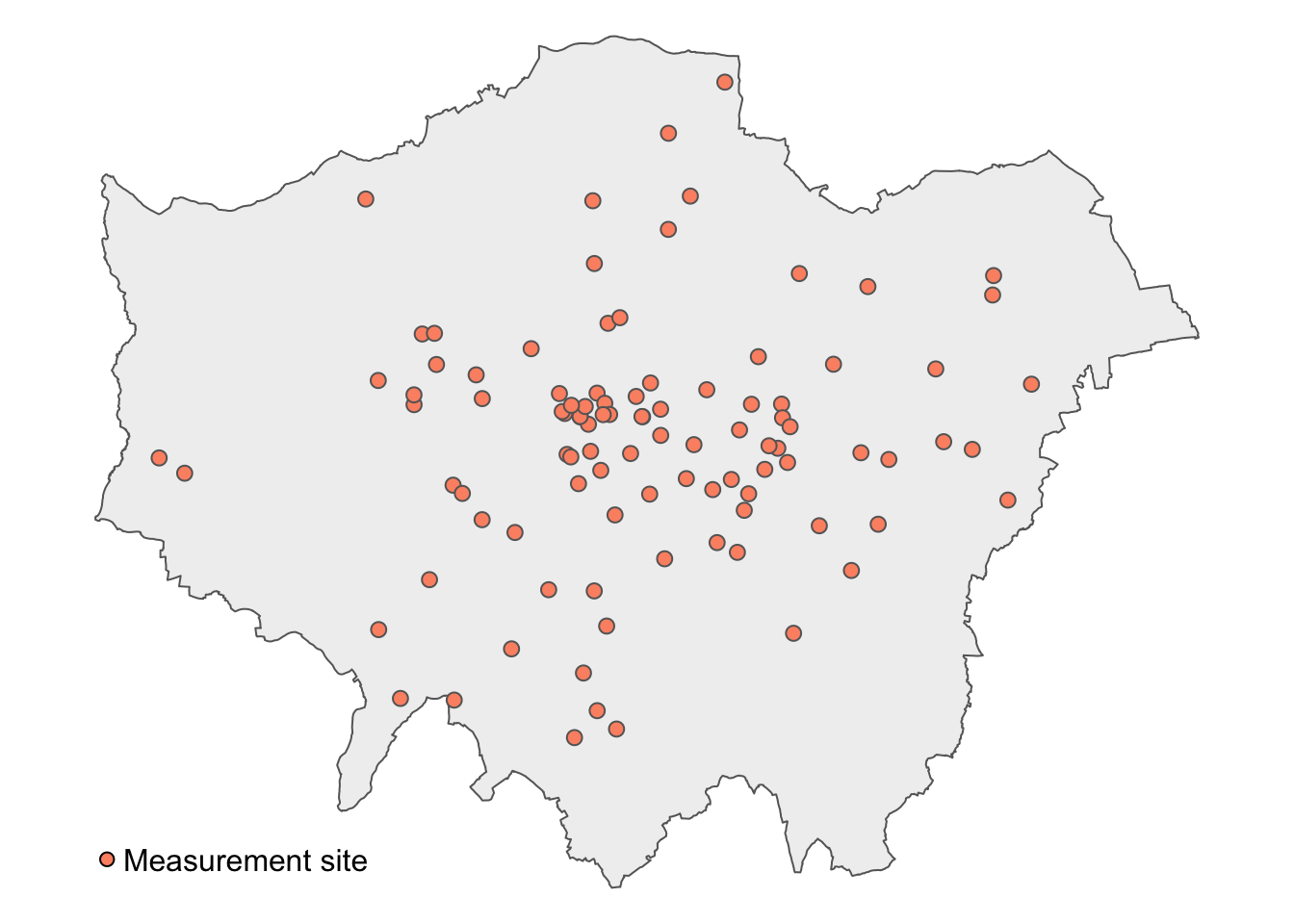
We now have 177 measurement sites with their corresponding latitudes, longitudes, and average NO2 values. Let us have a look at the spatial distribution of these measurement sites.
# load boroughs for backgroundborough <-st_read("data/spatial/London-Boroughs.gpkg") |>st_union()
Reading layer `london_boroughs' from data source
  `/Users/justinvandijk/Library/CloudStorage/Dropbox/UCL/Web/jtvandijk.github.io/GEOG0030/data/spatial/London-Boroughs.gpkg'
  using driver `GPKG'
Simple feature collection with 33 features and 7 fields
Geometry type: POLYGON
Dimension:     XY
Bounding box:  xmin: 503568.2 ymin: 155850.8 xmax: 561957.5 ymax: 200933.9
Projected CRS: OSGB36 / British National Grid
# create a point spatial dataframemeasurement_sites <- pollution_avg |>st_as_sf(coords =c("longitude", "latitude"), crs =4326) |>st_transform(27700)# number of measurement sites before clippingnrow(measurement_sites)
[1] 177
# clip measurement sites to london boundariesmeasurement_sites <- measurement_sites |>st_intersection(borough)
Warning: attribute variables are assumed to be spatially constant throughout
all geometries
# number of measurement sites after clippingnrow(measurement_sites)
Figure 10: Londonair NO2 measurement sites in London.
The network also covers south-east England, so only 98 of the 177 sites fall inside Greater London. We use these 98 sites in what follows. This means that the interpolated values near the edge of London are based on London sites only, even where a site just across the boundary is closer.
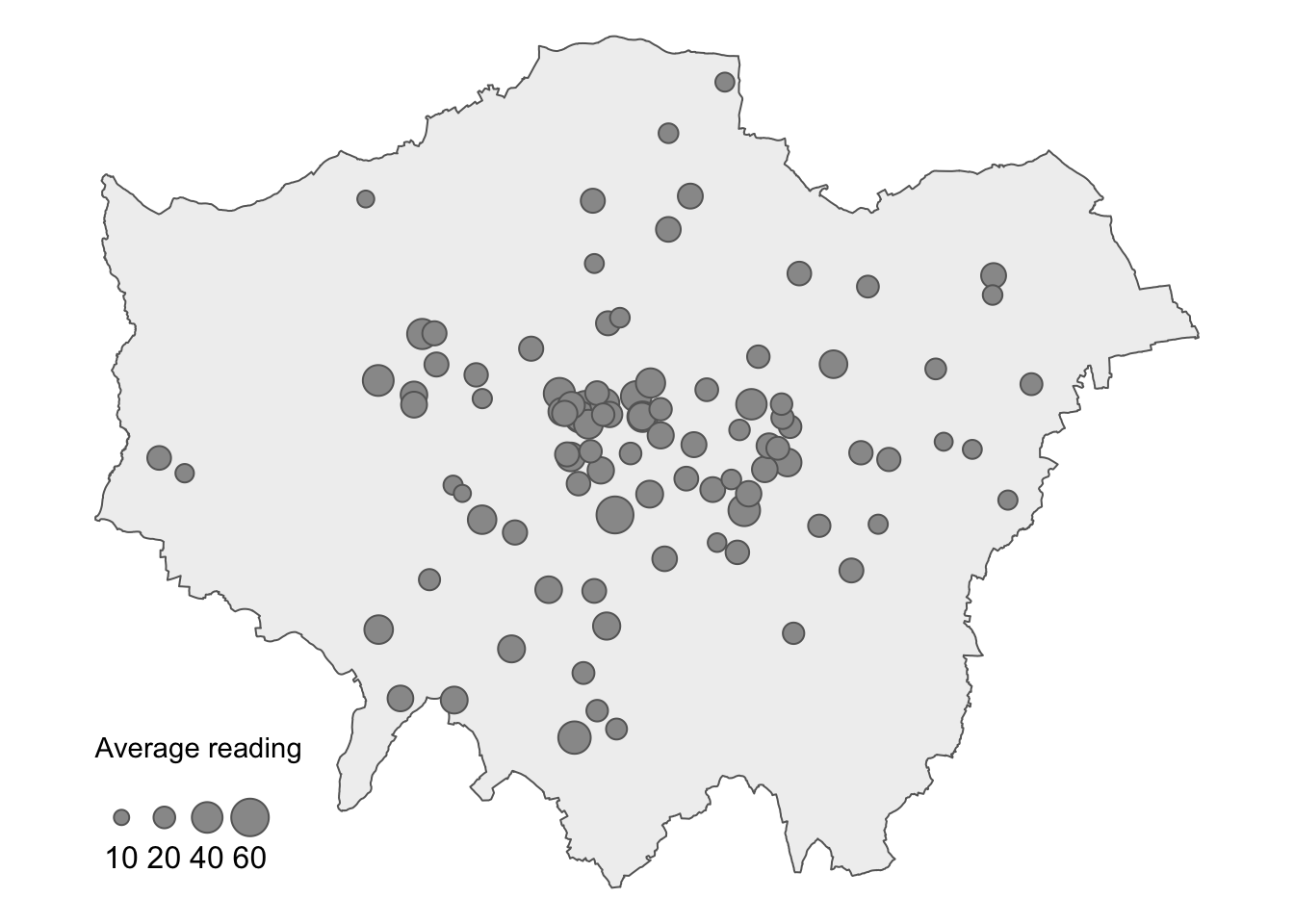
We can also use proportional symbols to visualise the values, helping us observe how measurements vary across London.
Figure 11: Proportional symbol map of average Londonair NO2 measurements in London.
Figure 11 shows heterogeneity in average NO2 measurements across London, both in terms of coverage and NO2 levels. To make reasonable assumptions about NO2 levels in areas without measurements, we can interpolate the missing values.
6.5.1 Voronoi tessellation
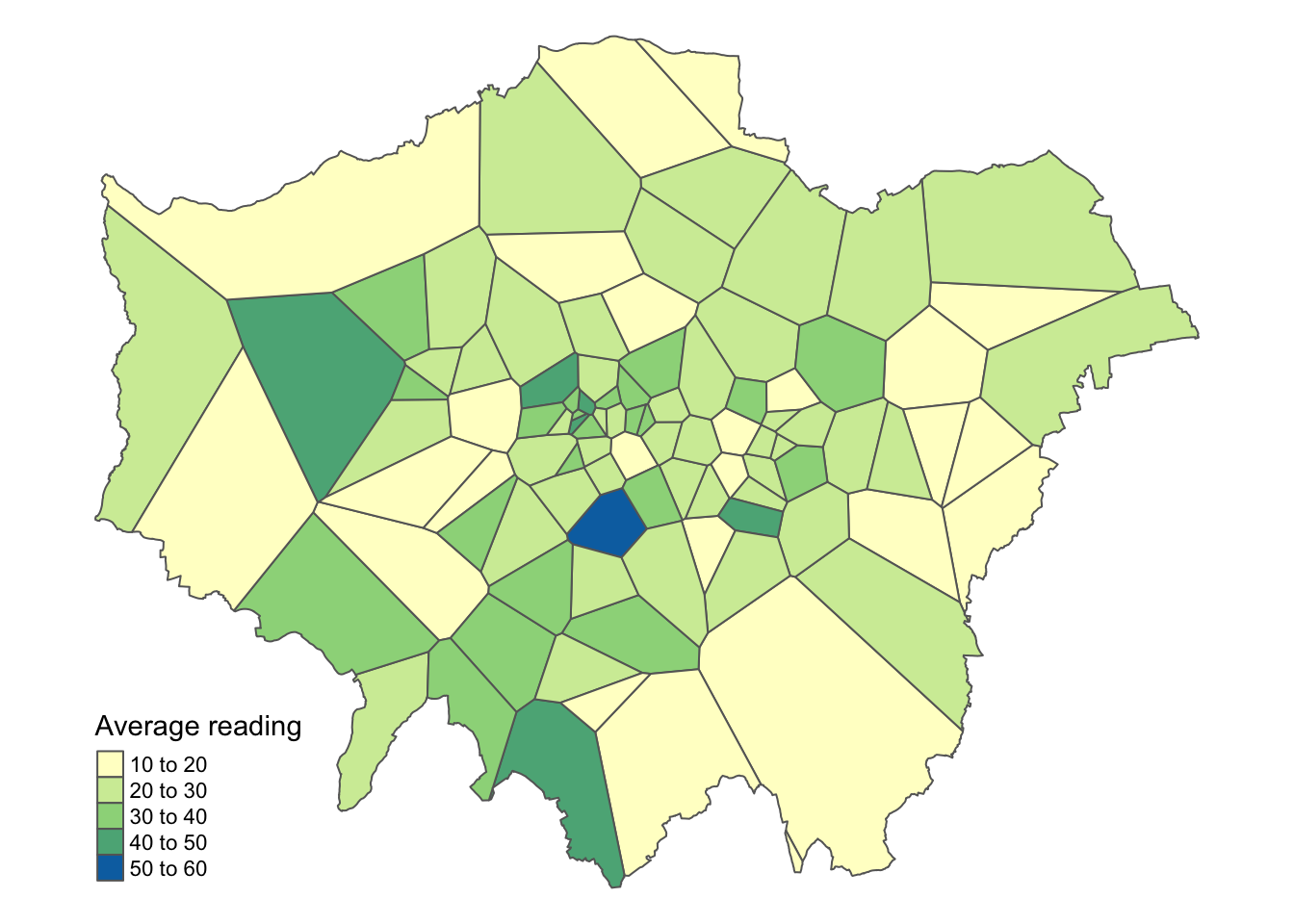
A straightforward method for interpolating values across space is to create Voronoi polygons (a Voronoi tessellation). These polygons define the boundaries of areas closest to each unique point, meaning that each point in the dataset has a corresponding polygon. Every location then takes the value of its closest measurement site: in the lecture this is called nearest neighbour interpolation.
In addition to Voronoi tessellation, you may encounter the term Thiessen polygons. These terms are often used interchangeably to describe the geometry created from point data.
R code
# functionst_voronoi_points <-function(points) {# to multipoint g =st_combine(st_geometry(points))# to voronoi v =st_voronoi(g) v =st_collection_extract(v)# returnreturn(v[unlist(st_intersects(points, v))])}# voronoi tessellationmeasurement_sites_voronoi <-st_voronoi_points(measurement_sites)# replace point geometry with polygon geometrymeasurement_sites_tessellation <- measurement_sites |>st_set_geometry(measurement_sites_voronoi) |>st_intersection(borough)
Warning: attribute variables are assumed to be spatially constant throughout
all geometries
Do not worry about fully understanding the code behind the function; just know that it takes a point spatial data frame as input and produces a tessellated spatial data frame as output.
You can further inspect the results using the View() function.
We can now visualise the results of the interpolation:
Figure 12: Interpolation of average NO2 measurements in London using a Voronoi tessellation.
6.5.2 Inverse Distance Weighting
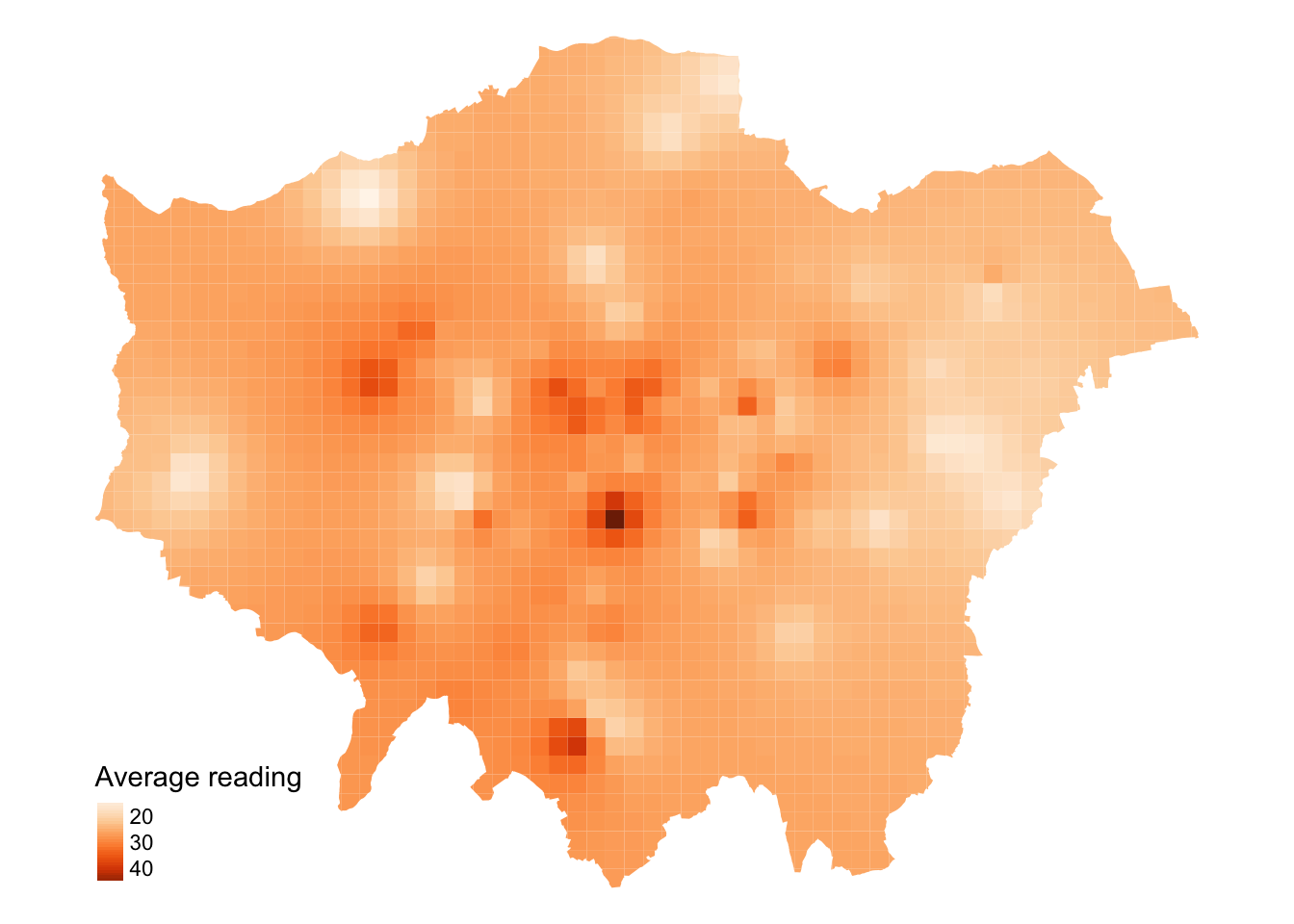
A more sophisticated method for interpolating point data is Inverse Distance Weighting (IDW). IDW converts numerical point data into a continuous surface, allowing for visualisation of how the data is distributed across space. This technique estimates values at each location by calculating a weighted average of the measurements, with the weights inversely related to the distances to the measurement sites: nearby points count for more.
The distance weighting is done by a power function: the larger the power coefficient, the stronger the weight of nearby points. The output is most commonly represented as a raster surface.
We will start by generating an empty grid to store the predicted values before running the IDW.
Warning: attribute variables are assumed to be spatially constant throughout
all geometries
The IDW interpolation may take some time to run because it involves calculating the weighted average of nearby points for each location on the grid. In this case, idp = 2 specifies a quadratic decay, meaning the influence of a point decreases with the square of the distance.
Again, we can map the results for visual inspection.
The values of the IDW output are stored in the raster grid as var1.pred.
Figure 13: Interpolation of average NO2 measurements in London using Inverse Distance Weighting.
We have set the output cell size to 1000x1000 metres. A smaller cell size gives a more finely resolved IDW output, but it does not add information: the surface still rests on the same limited number of measurement sites. Moreover, reducing the cell size increases processing time considerably: halving the cell size quadruples the number of cells.
NoteTry it yourself
Change idp = 2 to idp = 1 or idp = 4 in the IDW code, and predict how the surface changes. Rerun the code and compare the resulting map with your prediction.
Voronoi polygons and IDW are two of several interpolation methods. Kriging, which estimates from the data how similarity between measurements changes with distance, is a further option that we do not use here. If you want to explore it, for example for your own research project, Gimond’s chapter in the essential readings explains how it works, and gstat supports it as well.
6.6 Assignment
Having run through all the steps during the tutorial, we can conduct some more granular analysis of the NO2 measurements. For example, instead of examining the annual average measurements, we could compare data across different months. Please try the following tasks:
Create monthly averages for the pollution data.
Choose two months that you expect to show a meaningful difference in NO2 levels, and generate a dataframe containing the London monitoring sites along with their average NO2 readings for each month.
Perform Inverse Distance Weighting (IDW) interpolation for the data from both months.
Compare the results. Do the patterns match what you expected, and what might explain any differences you observe?
6.7 Before you leave
This week, we have explored raster datasets and how to manage and process them using the terra library. While you will typically encounter vector data, particularly in relation to government statistics and administrative boundaries, there are also many use cases where raster data may be encountered. With that being said: that is it for this week!